- Details
- Written by: Webmaster
- Category: Day of Defeat Source HUDs
- Hits: 1516


| Section | Description |
| Introduction | About editing the HUD area - The clientscheme.res file |
| Getting the clientscheme.res file | How you grab the file and place it so you can edit it |
| An overview of the sections | A quick look at whats in the file |
| The first items you may want to edit | Starting with an example - Colors |
| A download of the files | A standard but edited set of files with descriptions of functions |
| An example of using the file in the download. | An edit to the massive Day of Defeat Source logo (Main Screen) |
The ClientScheme.res file controls almost all colors, fonts, borders and font file address in the Day of Defeat:Source (dod:s) HUD area.
The two areas you see in the game are...
YourDrive_YourFolder\steamapps\common\Day of Defeat Source\platform\resource .
You place that in dod\resource and edit changes. You can learn more about that here.
We edit the ClientScheme.res file if customizing the HUD area.
The file you need grab is locked away in a .vpk file called "dod_pak_dir.vpk" in...
YourDrive_YourFolder\steamapps\common\Day of Defeat Source\dod
The .vpk file format is explained here and basically... think of it as a large compressed file like a .zip file that requires a "reader" to look at and extract files.
There are various readers web can use as mentioned in the bottom of the article. You can use GCFScape or newer readers like VPKEdit.
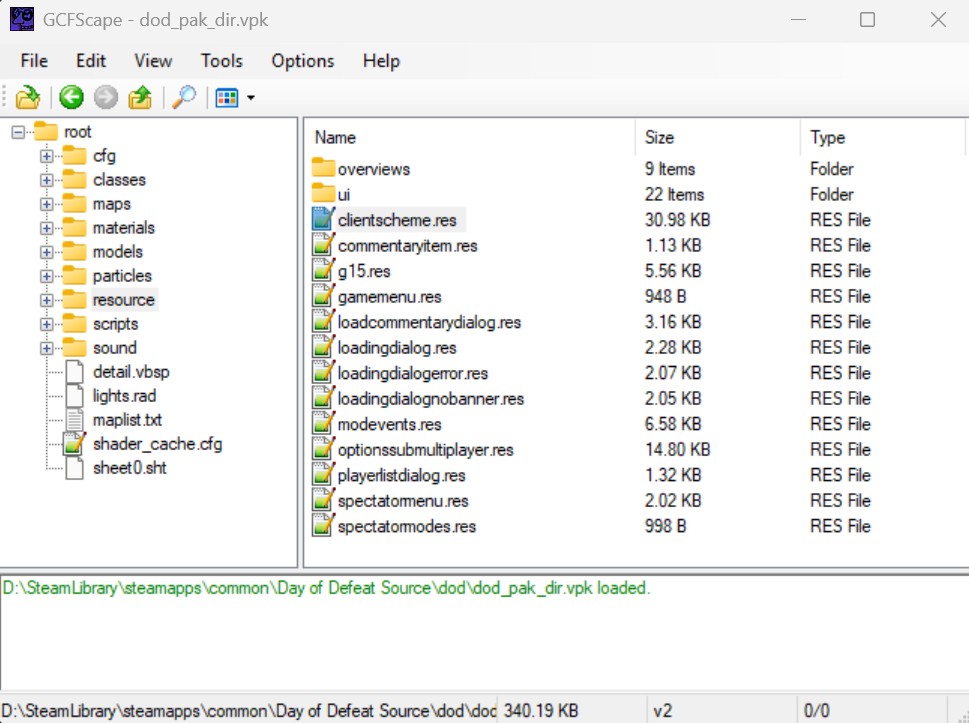 |
| GCFScape in dod_pack_dir.vpk |
After you install the reader of your choice...
Editing that file will now change items in the dod:s HUD area.
When reading the top of the file it has this...
// sections:
//		colors			- all the colors used by the scheme
//		basesettings	- contains settings for app to use to draw controls
//		fonts			- list of all the fonts used by app
//		borders			- description of all the borders
The colors section
This section defines some base colors and you can see names are applied to a RGBA color code
RGBA = Red Green Blue Alpha A mixture of the first three colors making a color mix.
The fourth number is an Alpha parameter, this is a number between "0" (fully transparent) and "255" (fully opaque).
There are various RGB and RGBA generators you can search for and use to visualize the colors.
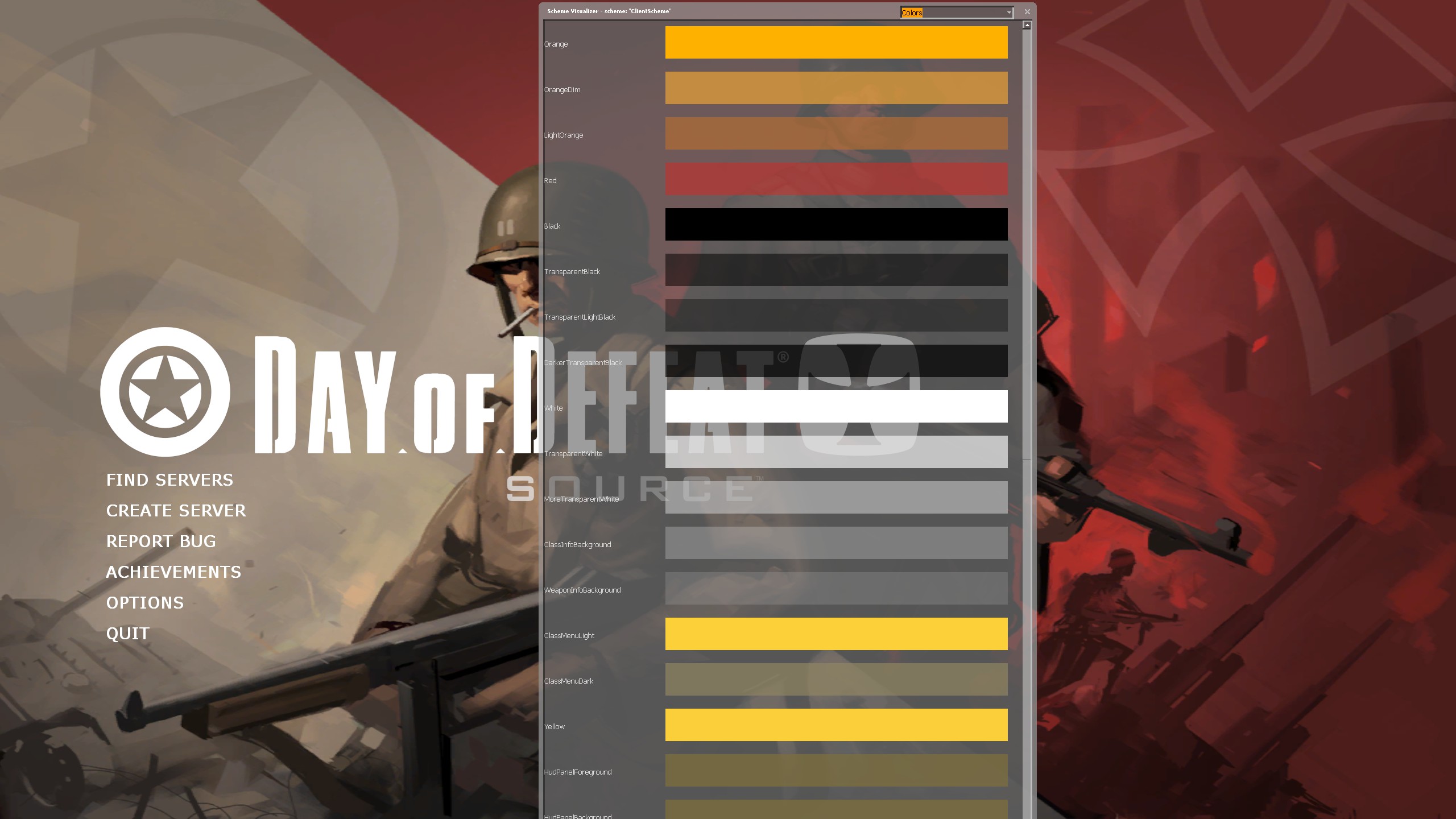
You can also see these in via a console command showschemevisualizer typing that in console and selecting "colors" in the top right gives all colors mention by name in clientscheme.res
 |
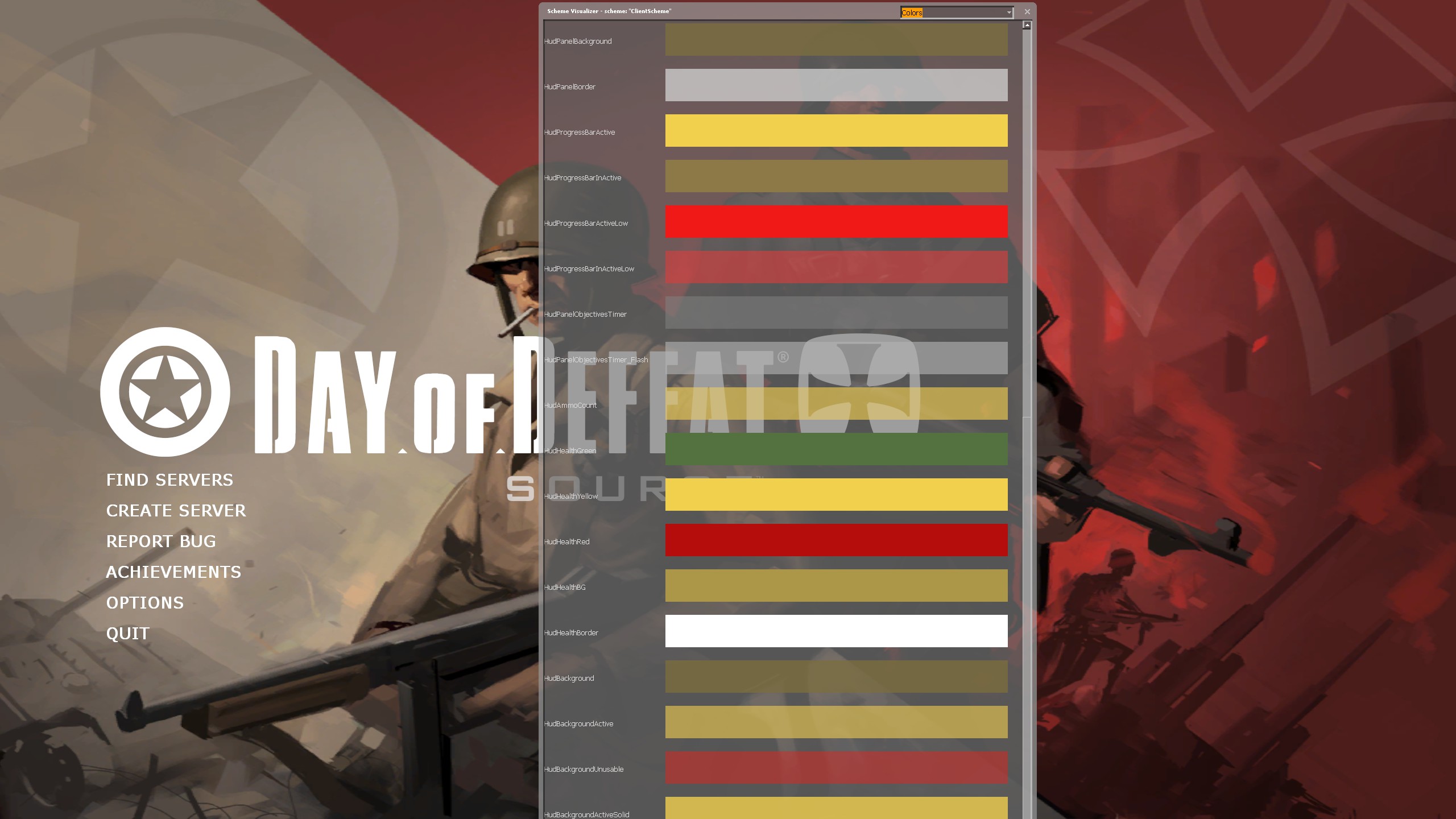 |
| The "Scheme Visualizer" tool - image 1 | The "Scheme Visualizer" tool - image 2 |
As you can see in that image the names like "TransparentBlack" "0 0 0 196" the RGB of three colors set at "0" is black and the alpha is "196" and see through (see image 1)
This may help in game as you can see this overlaying while in some HUD game panels...
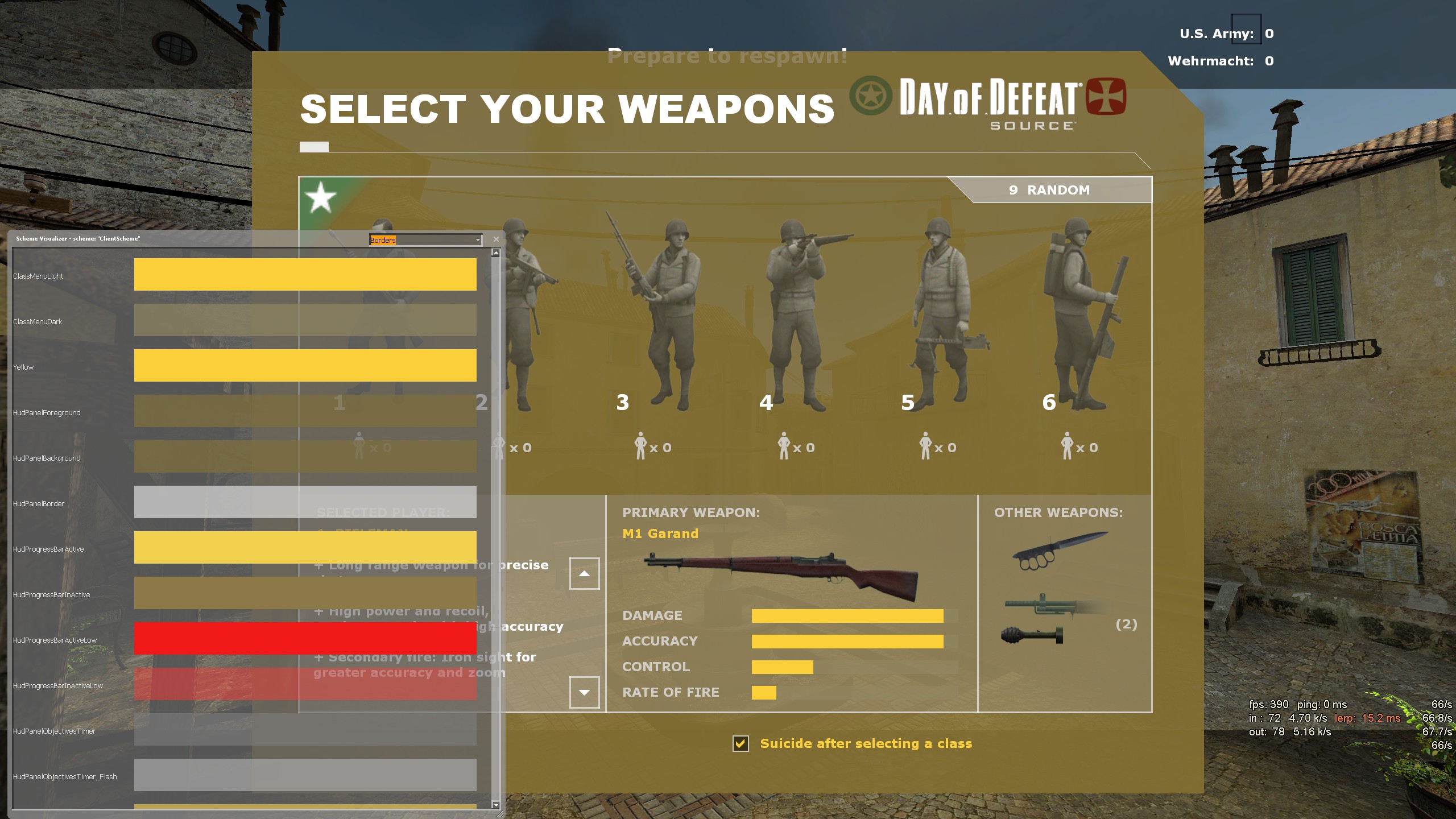 |
| The "Scheme Visualizer" tool- in game class menu |
The Base Settings section
Dropping down we can see the next section BaseSettings and there is text there describing what it is for, it is on the whole defining further HUD panel functions and assigning a color to them to be used by other .res files in the HUD.
There can also be other settings like a position of the Day Of Defeat:Source title, tagging the top left corner and giving a "X" and "Y" position and also a color.
		// Top-left corner of the "Day of Defeat" and "SOURCE" on the main screen
		"Main.Title1.X"		"48"
		"Main.Title1.Y"		"190"
		"Main.Title1.Color"	"255 255 255 255"
That Main tittle (in my opinion) is way too big and it really is in a dumb place. Remember this as in the fonts section we will deal with all of it via a special download of the clientscheme.res that is heavily commented for finding this area and manipulating it.
The Fonts section
Again if we go down we can read what this section is for.
Unlike the colors and base settings, it's a bit of a mystery in some cases what font is used in what area. It certainly is a section hard to deal with.
One thing you should know is looking at the first one you can see "Default" font has seven numbered sections. Take note of the differences in each one.
		"Default"
		{
			"1"
			{
				"name"		"Verdana"
				"tall"		"12"
				"weight"	"900"
				"range"		"0x0000 0x017F" //	Basic Latin, Latin-1 Supplement, Latin Extended-A
				"yres"	"480 599"
			}
			"2"
			{
				"name"		"Verdana"
				"tall"		"13"	[$WIN32]
				"tall"		"20"	[$X360]
				"weight"	"900"
				"range"		"0x0000 0x017F" //	Basic Latin, Latin-1 Supplement, Latin Extended-A
				"yres"	"600 767"
			}
			"3"
			{
				"name"		"Verdana"
				"tall"		"14"
				"weight"	"900"
				"range"		"0x0000 0x017F" //	Basic Latin, Latin-1 Supplement, Latin Extended-A
				"yres"	"768 1023"
				"antialias"	"1"
			}
			"4"
			{
				"name"		"Verdana"
				"tall"		"20"
				"weight"	"900"
				"range"		"0x0000 0x017F" //	Basic Latin, Latin-1 Supplement, Latin Extended-A
				"yres"	"1024 1199"
				"antialias"	"1"
			}
			"5" // Misyl: Proportional
			{
				"name"		"Verdana"
				"tall"		"9"
				"weight"	"900"
				"range"		"0x0000 0x017F" //	Basic Latin, Latin-1 Supplement, Latin Extended-A
				"antialias"	"1"
			}
			"6"
			{
				"name"		"Verdana"
				"tall"		"9" [!$LINUX]
				"tall"		"11" [$LINUX]
				"range" 		"0x0000 0x00FF"
				"weight"		"900"
			}
			"7"
			{
				"name"		"Arial"
				"tall"		"12"
				"range" 		"0x0000 0x00FF"
				"weight"		"800"
			}
		}
		"DefaultUnderline"
		{
			"1"
			{
				"name"		"Tahoma"
				"tall"		"12"
				"weight"	"500"
				"underline" "1"
				"range"		"0x0000 0x017F" //	Basic Latin, Latin-1 Supplement, Latin Extended-A
			}
			"2"
			{
				"name"		"Arial"
				"tall"		"11"
				"range" 		"0x0000 0x00FF"
				"weight"		"800"
			}
		}
When you see multiple numbered subsections in a font, it is often for different resolutions, the "yres" has a screen height setting like "1024 1199" this is a range of screen heights like a 1280x1024 pixel monitor or a 1920X1080 pixel monitor will use that setting.
The "tall" value is "20" Fonts will be applied using that size for that screen height range.
Try not to think in monitor widths in these settings, only heights matter.
Scrolling down to "HudSelectionNumbers" there is only one section.
These can be a problem in 2025, scaling on 4K monitors with that type of single "tall" setting can end up with tiny fonts in the HUD.
The "Scheme Visualizer" too can be used here too to look at fonts, just drop down the settings and select fonts.
Continuing down.
The Borders section.
On the whole most people don't edit this area as they give little issues but as you can see if you can change positions and colors of the borders.
The "Scheme Visualizer" too can be used here too to look at fonts, just drop down the settings and select borders.
The Custom Font Files Section
You will notice only one font mentioned in that section. It does show what this is for, operating systems have their own font files and they are called in the Font section via the very first line... "name" "Verdana" a common font in Windows and added in other operating systems.
But what happens when you need to add a font?
You add another font to the dod\resource folder, then you list it as Valve did for the DODlogo.ttf (a custom font file)
	}

	//////////////////////// CUSTOM FONT FILES /////////////////////////////
	//
	// specifies all the custom (non-system) font files that need to be loaded to service the above described fonts
	CustomFontFiles
	{
		"1"		"resource/DODlogo.ttf"
	}
}
This way when you want to use your custom font after you install it in dod\resource (or dod\custom\mod_name\resource) you only have to adjust the "name" "FontName" in the font you are editing in the font section.
I suppose the most popular edits would be users of high resolution screens and Linux players who may have a distro that needs a different font.
One of the more obvious issues for a 4K resolution is the MOTD message... it has tiny fonts.
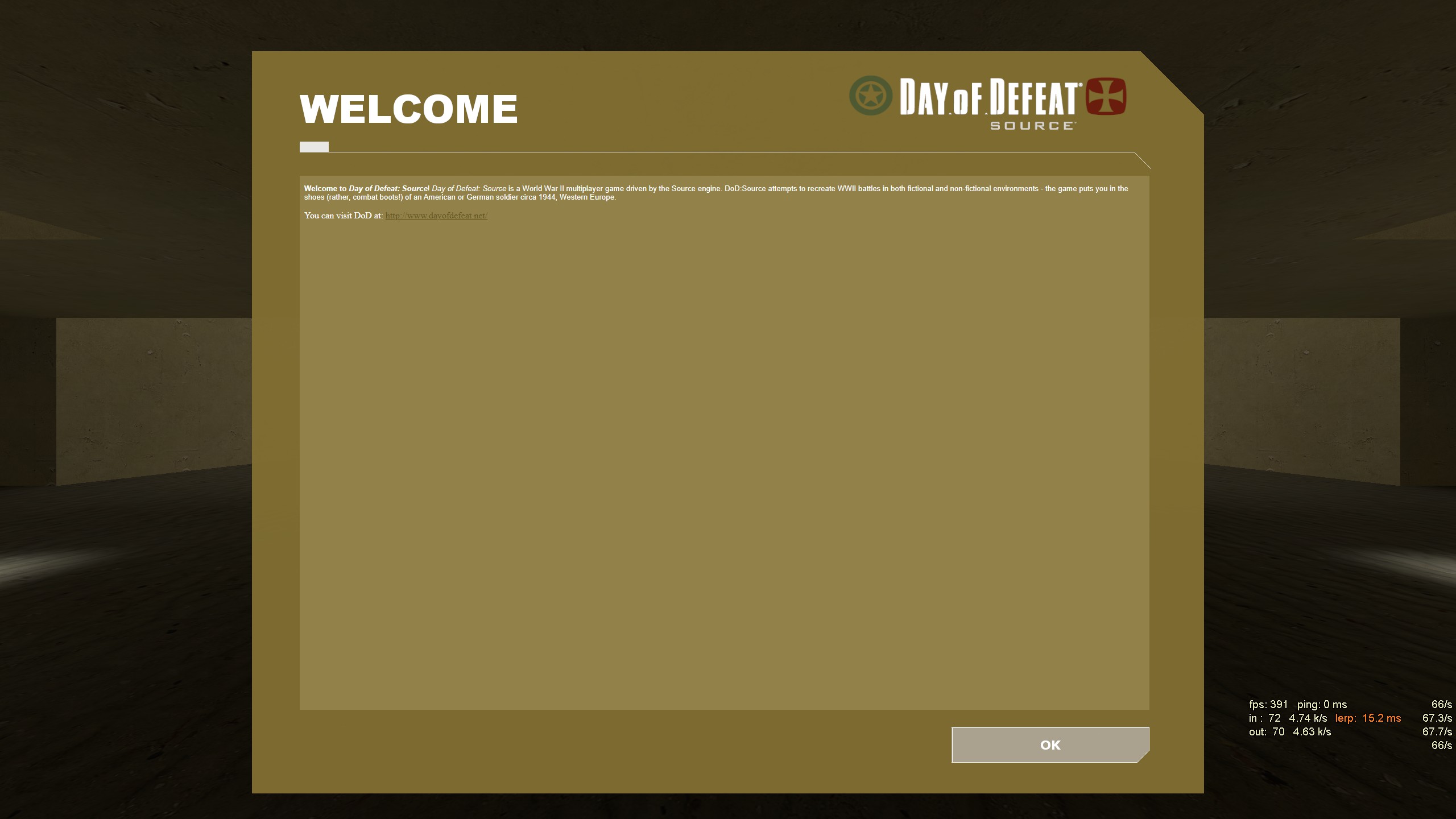 |
| Tiny MOTD.txt fonts - 4K 16:9 3840 X 2160 |
OK where is that font?
This is the hard bit...finding them in a file that isn't fully commented on what does what.
In this case the font isn't defined by the clientscheme.res, its getting settings from HTML in a file called motd.txt in the dod folder
(I left a copy in the download files) So changing that the text will increase a little but it's still buggy...
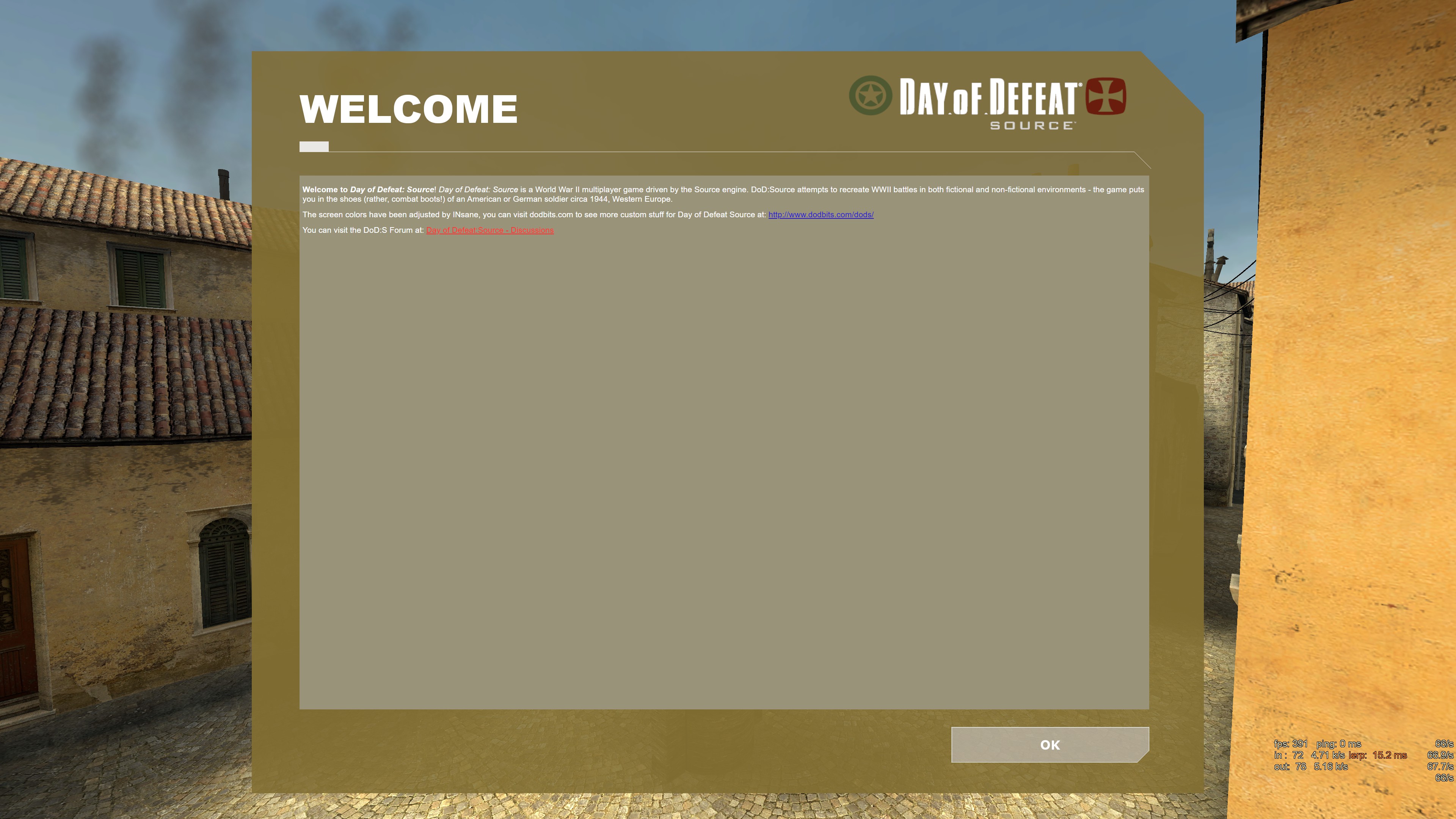 |
| Edited MOTD.txt fonts - 4K 16:9 3840 X 2160 |
There is another area like this that map makers now hardly use these days. Its the dod/resource/maphtml folder, those fonts also need editing if you see small fonts.
They are the map description fonts and images you see on the official maps, its always been quite buggy.
I just wanted to point that out for 4K and 5K screen users, not every font fix solution is in the clientscheme.res.
Also you may find a color that you think will change that freaking horrible Allied team green color...
		"team0"			"204 204 204 255" // Spectators
		"team1"			"255 64 64 255" // CT's
		"team2"			"153 204 255 255" // T's
...no it doesn't.
For some god awful reason they don't allow it. Colorblind persons absolutely HATE this in some cases its... invisible to them.
So two things you can do.
The font effect is "additve" and you apply it like below...
			}
			"4"
			{
				"name"		"Microsoft Sans Serif"
				"tall"		"13"
				"weight"	"900"
				"range"		"0x0000 0x017F"
				"yres"	        "1024 1199"
				"antialias"	"0"
				"dropshadow"	"0"
                                "outline"       "0"
                                "additive"	"1"
			}
The same for "dropshadow" and another one "outline" you can add these effects to the font BUT... only one of the types, select one type and turn the others off.
Finding these various sections can be a massively hard task in the next section I will offer a download (see below) that may help.
The functions of each section is clear but not the items in it.
Colors, fonts have names that sort of give you a clue what they are but most of them are a mystery and as you have read... some seem like they are just left over from other mods or versions and ...left there.
In the download I have as many descriptions as I could find, so you get a "hit" when targeting a function.
Word search the file like...win panels or ammo or scoreboard for those clues.
With colors leave the very top section alone, as you go down the colors section you will find the color functions split up into many items.
Then in base settings you see the colors split up yet again, make sure when you change a color that it isn't connected to another function that you don't want changed.
The further you go towards the bottom of "BaseSettings" the more individualized the color functions are.
Its the same with the fonts, some fonts like "Default" are everywhere. Be careful what you change.
Use a decent text editor like NotePad++ and use the search in that program. (It has numbered lines for a start were we can locate lines)
Early one in the article I promised an example of what to edit for that huge Day of Defeat logo, it really is excessive on a 4K resolution screen.
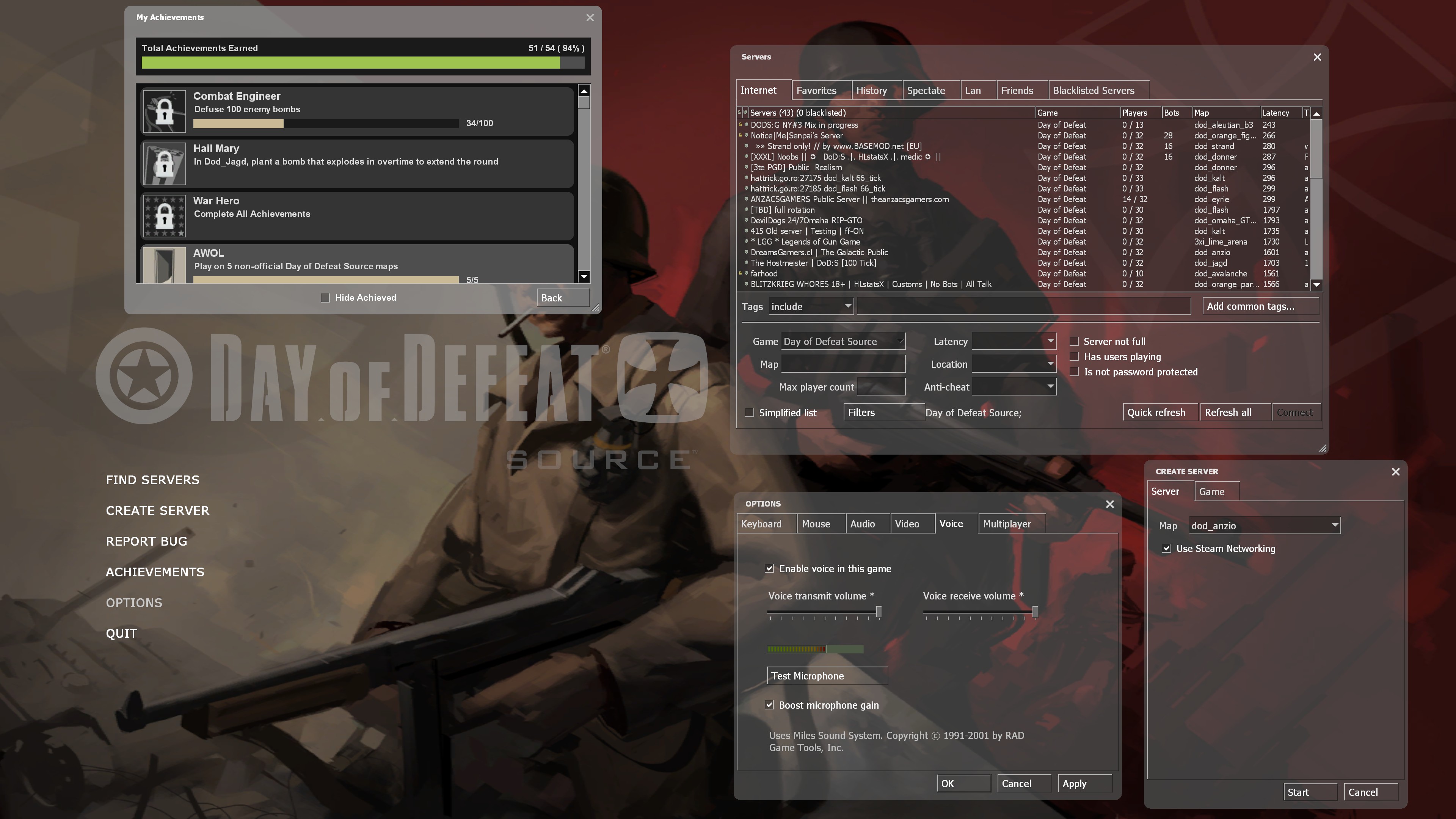 |
| Main menu Day of Defeat and SOURCE logo in 4K |
Opening the clientscheme.res file (in dod\custom\ dods_scheme_file\resource) go down to line 234 - 237.
You will see what I mean about the comments if you searched for some key words you would have found this line
                // Top-left corner of the "Day of Defeat" font on the main screen - Font size in Fonts "ClientTitleFont" Custom Change font to "tall"  "30"
		"Main.Title1.X"		"48"              // "48"  Custom "180" - Unit position from the LEFT side (Top left corner start of font) Bigger number moves it more to right
		"Main.Title1.Y"		"190"             // "190" Custom "425" - Unit position from the TOP side  (Top left corner start of font) Bigger number moves it down more
		"Main.Title1.Color"	"255 255 255 255" // The color of the font

		// Top-left corner of the "SOURCE" on the main screen font - Font size in Fonts "ClientTitleFont" controlled by the above
		"Main.Title2.X"		"297"             // "297" Custom - "280" Unit position from the LEFT side (Top left corner start of font) Bigger number moves it more to right
		"Main.Title2.Y"		"218"             // "218" Custom - "435" Unit position from the TOP side  (Top left corner start of font) Bigger number moves it down more
		"Main.Title2.Color"	"255 255 255 128" // The color of the font
There are some custom positions in the comments and they are based on X and Y values change...
"Day of Defeat" font...
"SOURCE" font...
As advised in the top comment.... Font size in Fonts "ClientTitleFont" Custom Change font to "tall" "30"
When you search (CTRL + F keys) for "ClientTitleFont" it brings you to (after a couple of clicks) line 687 and the font size is the "tall" value.
		ClientTitleFont  // Main screen title  "Day of Defeat" and "Source" font
		{
			"1"
			{
				"name"  "Day of Defeat Logo"
				"tall"  "76" // Standard "76" Custom "30"
				"weight" "0"
				"additive" "0"
				"antialias" "1"
			}
		}
Here is the result...
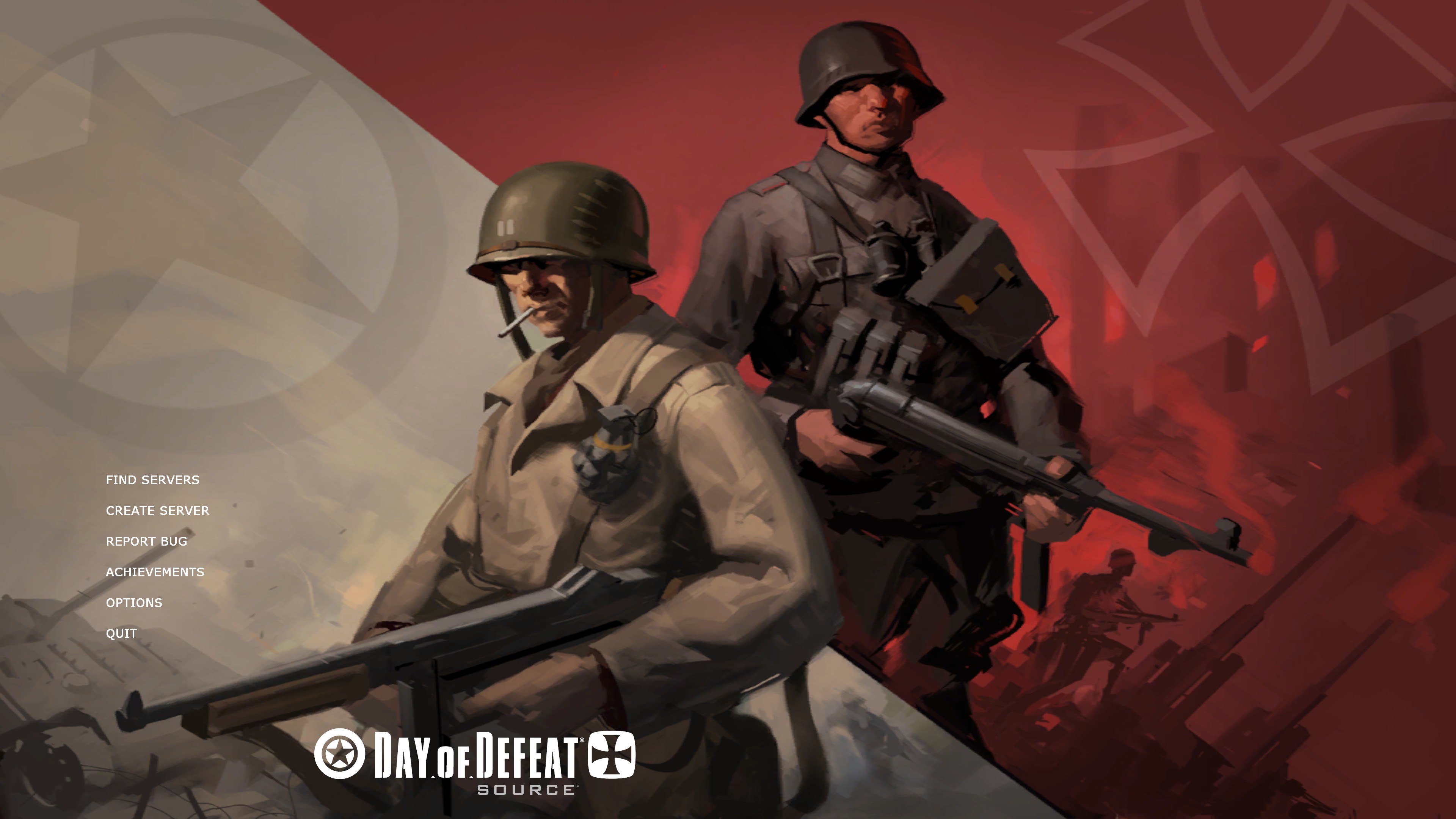 |
| Main menu Day of Defeat and SOURCE logo in 4K - edited logo |
Not all edits are that bad as this one was one of the rare examples of positioning items as well as colors and fonts.
It is also a rare example of this clientscheme.res just controlling the HUD area this is the GUI (sourcescheme.res) not the HUD (clientscheme.res). The same can be said of the Netgraph we see it in the HUD but it's adjusted in the sourcescheme.res.
On the whole the files are for those areas.
The take-way here is that searching for words in the reworked standard file in the download may save you some time.
The same can be said for word searching this site... got a area like the Kills and Deaths you want to edit?
Just use the "Search" menu item at the top of dodbits... you will be surprised what comes up.
This site runs on a database, every word is indexed.
Some of the other HUD areas often require other HUD files, there are many like the scoreboard.
A good place to start is this page that has links to HUD areas (see the image at the bottom of the article).
INsane