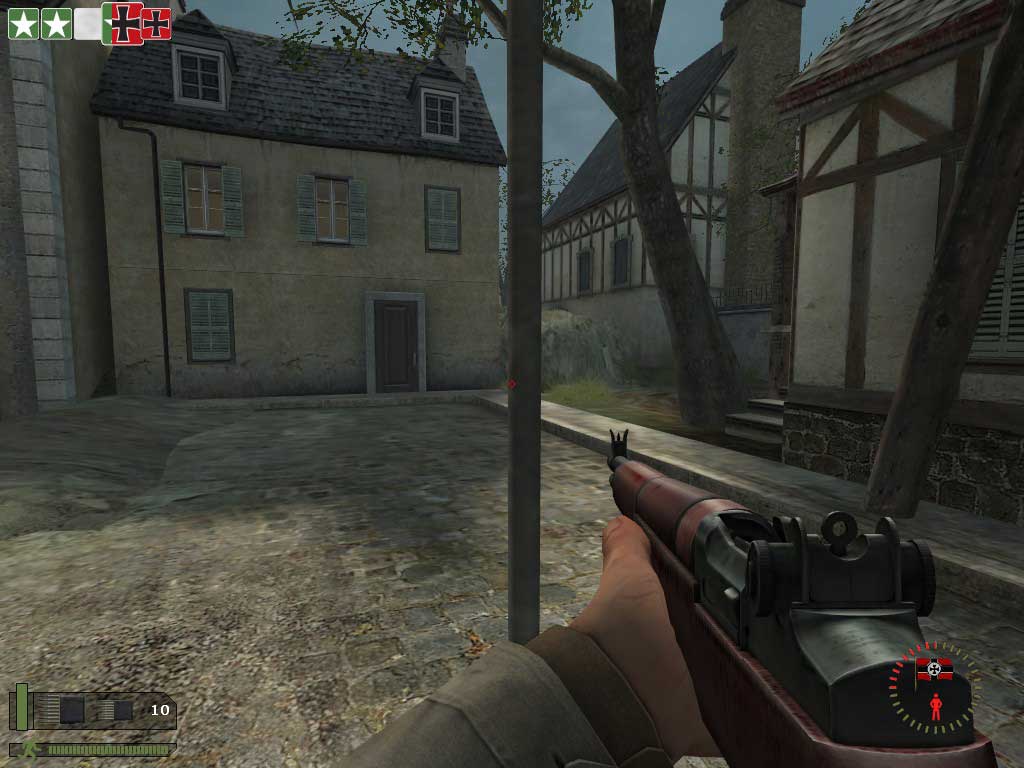
POSITIONING ITEMS ON THE SCREEN.
Files of interest when moving items around.
Two very important files for positioning items is the HudPlayerStatusPanel.res file and the HudLayout.res file.
These files determine the area items like the Stamina bar have to display in. They hold information about the items on the screen, Stamina Bar, MG Heat, Weapon status, Health Bar, icons, Current Weapon status and Ammo status, Capture Bar. Just open the files and look at the many sections.
Getting the settings wrong in these files can cause some errors in others. More on that latter... Please read "IMPORTANT NOTE ABOUT POSITIONING CERTAIN PANELS..." at the bottom part of the page before you edit any positions on the bottom of the screen... will save you some time and sanity.
Other files of interest, (for positioning items) are in the dod\resource\UI folder...
HudCapturePanel.res
HudCurrentWeapon.res
HudPlayerStatusFireSelect.res
HudHealth.res
ScoreBoard.res
Win_Allies.res and Win_Axis.res
HudPlayerStatusStamina.res
HudPlayerStatusMGHeat.res
The HudLayout.res file can be found in the dod\scripts folder and contains positions of many items and a few other things... read on, it is mentioned below and on other pages.
The "X" and "Y" positions and "wide" and "tall".
The "X" and "Y" positions are how you set the position of the HUD items on the screen...
Remember this to help?... "Y go up and down when you can X it right and left"
"X" = Right to Left.
"Y" = Up and Down.
Those values above only position an object, "wide" and "tall" set the size of the area you can move around in, go outside the area you set in "wide" and "tall" and the object will disappear or parts will get cut off.
You will find "X" and "Y" and their values in various sections of the files above, adjusting them can time consuming, the next section may help speed that up.
A neat trick to save time.
Normally, the files you edit can only be changed once, then you start the game to have a look at the result.
This can be very time consuming, I used a technique so I can "do it on the run".
Note: Use at your own risk, this technique involves changing your in-game screen resolution multiple times! It may be bad for some systems.
It did not hurt my video card, game files or PC!
Try setting your video options to "run in a window" and select 800x600 resolution. When you need to edit the file you are working on, press "escape" click the file on your desktop, edit the position, save it, change the resolution to 640x480 and it will refresh the screen and show the item in the new position.
This does not work with colours... just positions. Just keep going from 800x600 to 640x480 to "refresh the screen".
My system takes about 20 seconds to change resolutions... beats restarting the game : )
Do not... "Minimize" the dod screen while in "run in a window" mode. It may crash.
Do not... Pick a resolution over 800x600 it will take longer to load and will be a pain to edit the file behind it.
Do... ask someone else about this, if you are not sure if it is bad for your hardware!
It saved me from going, (pardon the pun) ... insane.
IMPORTANT NOTE ABOUT POSITIONING CERTAIN PANELS...
You may find sometimes that you position a panel and it gets "cut off" or even disappear.
This does happen sometimes when you have edited/not edited "wide" and "tall"... or a file in another place that controls the sizes in that area.
To explain: We have opened HudPlayerStatusStamina.res file to change the width in the Stamina bar, you may want a long stamina bar like the standard one but you find it has been cut off...
The setting in the HudPlayerStatusPanel.res file sets the size of the area where you can display the Stamina Bar...
"PlayerStatusStamina"
{
"ControlName" "EditablePanel"
"fieldName" "PlayerStatusStamina"
"xpos" "10"
"ypos" "161"
"wide" "105" (Default "266") This is the editable area for that item.
"tall" "32"
"visible" "1"
"enabled" "1"
If you changed that to ... "wide" "105" you will only be able to use that width in the HudPlayerStatusStamina.res file. Change it back to the default "266" and you can have your wide one ...
So, the HudPlayerStatusPanel.res is kind of like the "Master settings" file for that area.
The HudPlayerStatusStamina.res file adjusts the visual items to do with the Stamina Bar.
Another file that behaves like this is the HudLayout.res file, it's location is... \dod\scripts. (It is not a standard file and has to be added... it is in the download of extracted standard dod files at the start of the tutorial main page.)
The area the capture bar and all the contents in and around it can only be edited in the centre of the screen if you adjust positions in the HudCapturePanel.res file... if you try and move it to the right or left lower screen it will disappear!
Here is why...
HudCapturePanel
{
"fieldName" "HudCapturePanel"
"xpos" "c-75"
"ypos" "c80"
"wide" "150"
"tall" "90"
"visible" "1"
"enabled" "1"
"icon_space" "2"
Look at the value positons "xpos" and "ypos"... they have a "c" in them, one is even a minus value! If you want it on the lower right side change to this...
HudCapturePanel
{
"fieldName" "HudCapturePanel"
"xpos" "r130"
"ypos" "r100"
"wide" "150"
"tall" "90"
"visible" "1"
"enabled" "1"
"icon_space" "2"
You get the idea, sometimes when something is disappearing off the screen... there is another file affecting the area you are trying to edit. After you adjust the area in the HudLayout.res file, you can edit the HudCapturePanel.res file.
A bit more info' about the HudLayout.res file... and word of warning!
In this file you can set the size of the area and all it's components that fit in it and adjust the assembled, separate items around the screen as a whole group.
If you have just spent 30 minutes or so adjusting all the components so they don't overlap each other... and then you find you want to make room for another group or a single item, you may find it quicker to adjust these values. This is the first set and it controls the position of the items in the HudPlayerStatusPanel.res file...
"fieldName" "HudPlayerStatusPanel"
"xpos" "0" ...The width position. Taken from the top left corner of the area.
"ypos" "285" ...The height position. Taken from the top left corner of the area.
"wide" "640" ...The width of the area, "640" is the total width of the Game screen.
"tall" "190" ...The height of the area, "480" is the total height of the Game screen.
"visible" "1"
"enabled" "1"
This is very handy... but in the case of the Player Status Bar you have to remember that if you do move the assembled "panel" ...you will also move other items!
These items are the Stamina bar, the MG bar and the Fireselect Bar, so be very careful adjusting the HudPlayerStatusPanel.res positions in the HudLayout.res file. You will have to re-adjust a lot of other items!
You will find it is better to leave the standard "xpos" and "ypos"
alone in the HudLayout.res and adjust the items in the
HudPlayerStatusPanel.res, HudHealth.res files.
On the other hand using the HudLayout.res file to adjust
panels like the Win_Allies.res and Win_Axis.res,
(end of the round win panels with a lot of individual items) is very handy
as all the items move around together with just one simple adjustment ;)