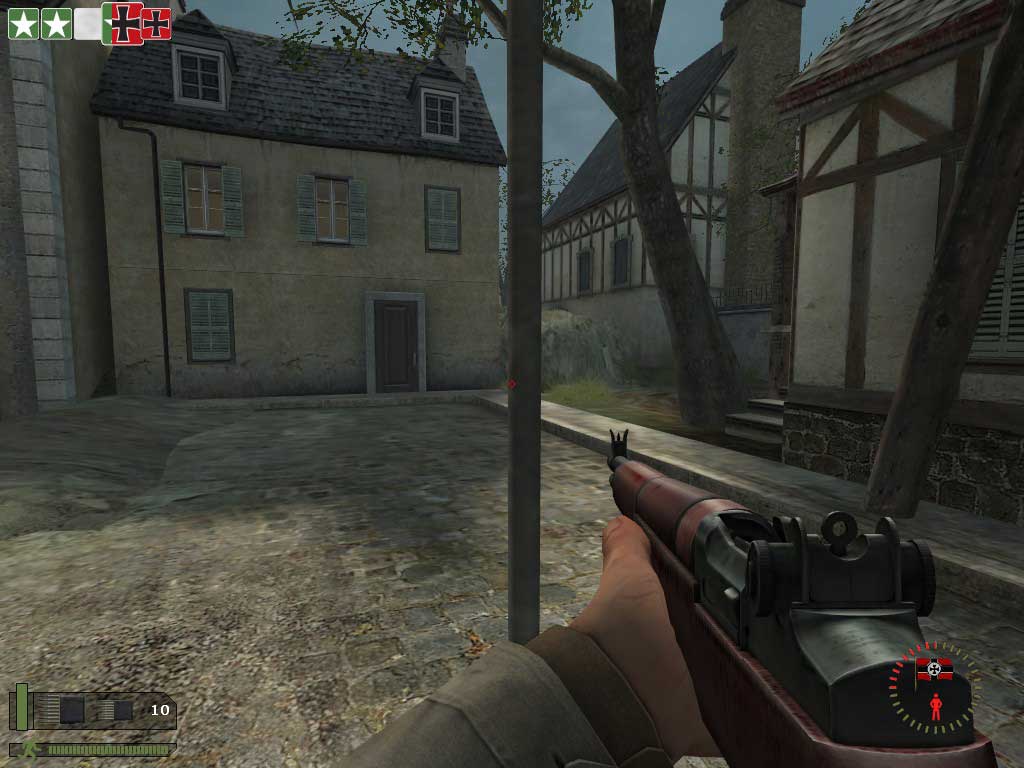
The Capture Icons and Capture Progress Bar.
These are the ones that appear in the centre mid to lower screen when capping a timed flag. The color control for these in the ClientScheme.res file are…
HudCaptureIcon.Active "HudProgressBarActive"
HudCaptureIcon.InActive "HudProgressBarInActive"
HudCaptureProgressBar.Active "HudProgressBarActive"
HudCaptureProgressBar.InActive "HudProgressBarInActive"
You can change them around just like the Stamina progress bar in this page.
I wanted this to have red icons with the start of the capture Orange and finishing in Red changes in bold…
HudCaptureIcon.Active "HudProgressBarInActiveLow"
HudCaptureIcon.InActive "HudProgressBarInActiveLow"
HudCaptureProgressBar.Active "HudProgressBarActive"
HudCaptureProgressBar.InActive "HudProgressBarInActive"
It worked OK for the icons, (you and a teammate yet to come) they both turned Red.
But changing the color for the bar in the ClientScheme.res file didn’t work for the progress bar… why?
It gets messy now, you can control the color of the icon OK in the ClientScheme.res file but you will have to visit the HudCapturePanel.res file and do some changes there…
Look for ….
}
"CapturePanelProgressBar"
{
"ControlName" "ImagePanel"
"fieldName" "CapturePanelProgressBar"
"xpos" "30"
"ypos" "0"
"wide" "90"
"tall" "90"
"visible" "1"
"enabled" "1"
"scaleImage" "1"
"image" "progress_bar"
"color_active" "HudProgressBar.Active"
"color_inactive" "HudProgressBar.InActive"
The color for the progress bar is in the last two lines. If you want Orange to start first and then the bar ends in Red we have to change it like this…
"color_active" "HudProgressBarActiveLow"
"color_inactive" "HudProgressBarInActiveLow"
Notice that I removed the full stop after "Bar and added "Low to both of them. Now the progress bar will start at Orange and end in Red. If you want Green then Red… just edit the bottom one only. Another note about colours is you may find you can enter the actual colour in certain files, instead of the "HudProgressBarInActiveLow" valve, try entering "255 176 0 255" or some other colour.
The Capture panel Background…
If you want to get rid of the square background, do this in the HudCapturePanel.res file, look for…
"CapturePanelBackground"
{
"ControlName" "Panel"
"fieldName" "CapturePanelBackground"
"xpos" "30"
"ypos" "0"
"wide" "90"
"tall" "90"
"visible" "1"
"enabled" "1"
}
}
Change the bottom two lines…
"visible" "0"
"enabled" "0"
Positioning the Capture Bar Items.
The Capture Bar is located in the centre of the screen as standard. There are two files that determine this position...
The HudLayout.res file, it's location is... \dod\scripts.
The HudCapturePanel.res file it's location is... \dod\Resource/UI.
The area the capture bar and all the contents in and around it can only be edited in the centre of the screen if you adjust positions in the HudCapturePanel.res file... if you try and move it to the right or left lower screen it will disappear!
Here is why...
HudCapturePanel
{
"fieldName" "HudCapturePanel"
"xpos" "c-75"
"ypos" "c80"
"wide" "150"
"tall" "90"
"visible" "1"
"enabled" "1"
"icon_space" "2"
Look at the value positons "xpos" and "ypos"... they have a "c" in them, one is even a minus value! If you want it on the lower right side change to this...
HudCapturePanel
{
"fieldName" "HudCapturePanel"
"xpos" "r130"
"ypos" "r100"
"wide" "150"
"tall" "90"
"visible" "1"
"enabled" "1"
"icon_space" "2"
You get the idea, sometimes when something is disappearing off the screen... there is another file affecting the area you are trying to edit. After you adjust the area in the HudLayout.res file, you can now edit the HudCapturePanel.res file, the icons, bar, background, message... and flag icons.
Flag Icons.
The flag Icons are in the \dod\materials\vgui if you want to change them it is a visit to Photoshop or The Gimp to change the files. They are named…
Flag_USArmy.vtf , Flag_Wermacht.vtf , Flag_Neutral.vtf .
There are two others I have not seen
working yet in a game they are…
flag_axis.vtf and flag_allies.vtf
I have reworked the colors in all of them, you can find them in my HUDs here.
As I noted above there are two others for both allies and axis.
To use them… just rename to Flag_USArmy.vtf for allies and Flag_Wermacht.vtf for axis.