- Details
- Written by: INsane
- Category: NSIS Installers
- Hits: 9769


This Tutorial will help you make a NSIS installer package for Steam Mods. It has been made step by step for the person who has not assembled an installer package before. So for some, it will seem long, but this is a beginners level version, every step must be included :)
I urge you to just run through this tutorial and make a simple one first, say an installer for a single piece of content like a cfg file (text doc in the cfg folder) just to test if you got it correct.
The steps below seem long, when you have done this a few times it can take under 2 miniutes!
Description: A simple ... but long step-by-step guide to make NSIS install creator make a basic installer that automatically finds the user's dod or cstrike folder.
This will work for all Steam mods with a couple of alterations. Just remember where "dod" and "cstrike" are mentioned change the addresses to your mods main game folder where folders like "resource", "scripts", "materials" are kept.
The following will build an installer to add your custom content you have already packaged in a "dod" or "cstrike" folder with all the files already placed in the correct sub folders.
So, to prepare your custom content by putting it all in a "dod" (DoD:s) or "cstrike" (CS:s) folder. It will be quicker adding one folder during this tutorial rather than a lot of single files.
(A). Install NSIS A Free windows installer package...
Note that later on you may decide you want a fancy installer as mentioned here. In that case install this combined package instead.
(B). Install HM NIS EDIT A Free NSIS Editor, a much better GUI to use with NSIS.
(C). Make your custom content as you would for a zip file, a lot of people place a dod or cstrike folder in their zip, do it this way for the installer, place all your custom content inside a main folder called... dod or cstrike ... make sure all the subfolders and files are in the correct place
|
IMPORTANT! The best way to keep things neat is to make a new folder and keep all your stuff for making these installers inside that one folder. This is one of those situations when the Author says "Trust me... just do it." Make a folder under "C" drive, then make sub folders for each project you do. The reason is to keep the file addresses simple, if you have to add file addresses manually later on, this will help a lot. |
The installer will grab the dod folder and place it and all of it's contents in the user's correct address...
C:\Program Files\Steam\Steamapps\day of defeat source
...or wherever the user installed Steam or the game.
Note: This does not always work, it depends on a healthy windows registry, gamers being gamers, they don't keep a tidy system. However it will work most times and there is a browse funtion anyway.
That is the best part of this installer, those complicated addresses and the explanation of how to place them in the user's correct folders are not required... the installer will find that address automatically...most times :)
There is only one problem... the uninstaller will report the size of the user's dod folder (in the Add/Remove screen) ... not the true size of your content. You should make the user aware of this in a readme.
|
Run the wizard in HM NIS EDIT, click on the magic wand below "File"...
Press Next > and...
Fill out the text boxes in the "Application Information" screen.
Press Next > |
 |
|
Setup icon: The icon the installer will use. This can be changed or use the default. To change you must have a working icon (.ico) Compatible with NSIS and put in its address on your local PC.
Setup file: compile the installer.
NOTE: It is wise to give it a unique name other than "Setup.exe".
Compress:
Press Next >
|
 |
4. Application directory and License screen.
|
This section holds info on the place the installer is going to put the files you made and a text page of a "License"... Application default directory: "Programs File" directory. "counter-strike source\cstrike" folder.
There is more to do on this latter... but for now put in...
It is always wise to leave the... "Allow user to change the application directory" ...tick box as ticked. This will allow the user to use the browse button to choose for him/herself. To make it go away delete what's in there and leave it blank.
You may want to display your readme file here. If you like you can browse (...) to your readme and the wizard will place in the files address in the License File address box.
The readme file has to be a .txt type file... normal old notepad will do.
Press Next >
|
 |
|
This section can add information of the files you have made. It also tells the installer where to find the files on your This section is very easy to fill out, it is also VERY important and can get quite difficult if you want to make an installer that can have more complex installation options.
Even though we do not need to show this page for a Press Next >
|
 |
|
This section is about the Start menu it can create a program group with an uninstall icon and a web address. This can get messy for the user, it is far better not to put these in ... we all have enough things in our Windows start menu :)
For this simple Tutorial we will opt out and keep it simple...
Application Start Menu folder name: just delete the name leave it blank. Radio buttons: Unclick all ticks in the three options below that.
Press Next >
|
 |
7. Execute after set up screen.
|
This next section is used to execute the program after install.
but it is better to include it in a zip with the install program.
The user should read about your custom content before he or she starts to install. So, the License page may be a better option.
For this tutorial we will leave all sections here blank.
Press Next > |
 |
|
This section is for the uninstaller details, it is a good idea to include this as they often work well for "new users to the game" oh to hell with it... n00bs OK? We do have to do some work in the script later for
the user's uninstalling convenience, but for now...
Use uninstaller tick box: Make sure "Use uninstaller" is ticked. Uninstall prompt: Leave this alone. Uninstall success: Leave this alone. Uninstall icon: Leave this alone for now. We will rename it later.
Press Next >
|
 |
|
The Wizard Finished screen pops up... Press Finish > HM NIS EDIT. Your script is in the right window pane. press "Save as..." in "File".
The save box pops up place it somewhere you can find it again and give it a name.
Important! The same folder you have your content in is best, the
|
 |
|
Compile and test.
It is ready to compile a script to make an installer
|
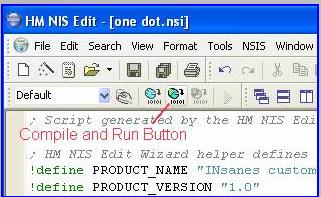 |
What we have just done is make an installer script that is ready to compile, run and make a setup.exe package. It will deliver your files to the user, but we can add more features if required.
If we compile and run it now it will...
