Back to dodbits.com
Blocking Steam Content Servers IP addresses.
Guides
Why would anyone block a Steam Content Server?

Sometimes Steam dumps you on a server that is slower, or another ISP when you are a customer of an ISP who runs a "filtered server".

This Guide, some ideas of my own and some copied from others in forums, is intended for Telstra customers to help them obtain the free tools needed to fault find this problem.

This is the method I used to find Steam Content servers I wanted to block, may not be the best... but I did have some success.

There are other ways to help contact a Telstra server, this one just covers blocking IP's. Links to other methods are mentioned latter.

Basically the outline of the method I used was this…

   1. Find out what IP address Steam is downloading from.
   2. Find out how fast it is, what ISP /country it is from, and decide if you want to block it.
   3. Enter what you found in Zone Alarm, block it, force Steam to pick one that YOU want.
   4. Delete ClientRegistry.blob file, restart Steam and try again.

List of Steam content server IP's.


The Short way…

For Telstra customers only. If you have Zone Alarm and trust the set of IP’s I found, see…

"Updated list of IP's now blocked."… for the IP’s List of Steam content server IP's.

"Zone Alarm IP Blocking."… How to quickly enter them in.


The Long way…

You may find you still have problems of not getting a Telstra server, after you try the Short way. Read on, use the method below….


Getting the Tools used… all freeware…

Tesseract

Zone Alarm

NeoTrace Express 3.25


Using Tesseract to find the IP of a Steam content server…

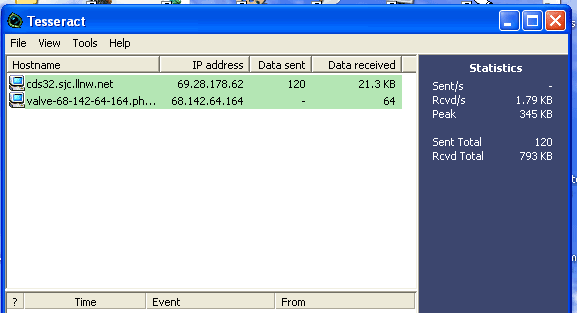
Tesseract will allow you to watch IP addresses that are connected when Steam tries to up-date. Sometimes it will even have the name of the content server, but if nothing else is downloading on your PC, the content server IP will be the one that is most active in Tesseract.

Note: Pick the right IP to block, don’t blindly block any IP it could be a service you need!… just don’t run services (like a download manger),  when you are at this stage.

You will notice a lot of IP’s (the steam content servers), contacted at first, then Steam will pick one and start downloading from it, Tesseract will record the data up and downstream.

The Steam Server is most likely to be the one that is downloading the most.
You can right click on it to copy the IP to the clipboard….
If you found a content server IP you don’t want to use, cancel the download.
Keep the info like…"203.233.34.181"

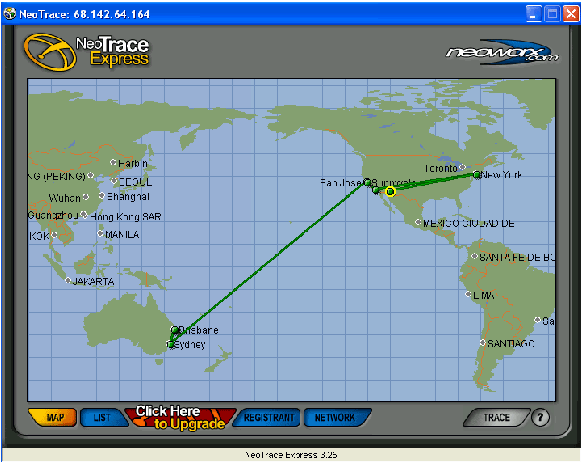
If you want to find out more info like country that the server is in use NeoTrace Express 3.25 if you like…. Just start NeoTrace and enter that IP….

In this particular case the server Steam was downloading from was in Seoul Korea, it belongs to GNA SOFT, one of their 5 servers in the Asia region. You can get more info from google but if it’s not from Telstra Australia and it’s slow… I don’t want it.

Mostly you can guess what server it is by looking at this page of Steam content servers… http://steampowered.com/status/content_servers.html
This one from Seoul was slow for me, I don’t care who owns it, I don’t want it… I want it blocked.

Ok, you have the info of that server, now to block it.

You can now exit steam if you have not already and stop the download.

You should also delete the ClientRegistry.blob file in your C:\Valve\Steam or C:\Program files\Steam folder because it holds past content server info and will need to refresh on the next start. Give time for Steam to exit before deleting.


Zone Alarm IP Blocking.

Enter it in Zone Alarm and block it for good…..
To block an IP  in Zone Alarm…

   1. Double click on the Zone Alarm Icon, select "Firewall", then  "Zones  tab.
   2. Click "Add", then "IP Address"
   3. A Box pops up fill in the IP address you saved, Description, and select "Blocked".
   4. Press "OK  then "Apply".  Don’t forget to apply…or it dies.
   5. If you have a lot of consecutively numbered ip numbers you can group them in "Add", then "IP Range "

List of Steam content server IP's.

Try, Try again…


Now you can try to update again.

Steam will then pick another server to download from… but will it be the one you want?
Well… I went through 14 IP blocks in Zone Alarm before I got my Telstra content servers "regularly".

I say regularly because it means, most-of-the-time, even after you get a content server you want you may find the next time you try Steam will use its "load balancing  and … pick another one half way across the world, if it does copy the IP and block it.
This did happen to me and will happen again, it’s not perfect but at least I have a better chance at controlling it now.

This is why I use this method, its changeable; you are the one in control. You choose the server and sort-of control steam content.
Be prepared to spend some time on this and an amount of your Bigpond download quota, the updates are about 3 MB each time you try…if you let them complete.

I found this method good because once you have entered the blocked IP in Zone Alarm, you can easily un-block it by just clicking on the entry and pressing "edit" in Zone Alarm and change to "Internet". Then it will download again.

Why would you want to unblock it? I hear you say.
Well some times an update is very small and any server will do if the Telstra ones have a problem.


Other methods...

These worked for other people too...


Whispers guide for  Windows 2000, Windows XP Professional and Windows 2003 ONLY!
http://whisper.ausgamers.com/steam/content.htm

This next one is by WaLLy3K...
http://www.gamearena.com.au/messageboards/halflife/thread.php/2970393?startid=120

His post...


DO NOT BLOCK THE VALVE CONTENT SERVERS! That is one thing I cannot stress enough, because they are needed to download content that GA servers don't have and typically you end up blocking the master content server which leads to an empty box with steam saying its too busy to handle the request.

Unblock all the servers that you have blocked, and only block the IP's that are in the below picture.

ALL you need to do is block the 'Node and Gamespace servers individually, make sure STEAM is set to 'DSL > 768K' (like this): http://www.clan-beef.net/upload/info.JPG

Download TCP Optimiser: http://www.speedguide.net/files/TCPOptimizer.exe

Then make sure you have these settings:
http://www.clan-beef.net/upload/optimiser.JPG
Then restart your PC.

Delete your clientregistry.blob file and then you _should_ have a GA Content server. This is what I have done, and it works for me twice now.
I find that once you have the GA Content servers, they don't go away, so there is no need to do this again unless you format your PC and don't recieve the GA Content Servers again.
If nothing comes up in the monitor window, then another easy way to check what you have is to launch CS 1.6, create a server and then see what banner you get in the window 'Content Hosting Provided By:' window.
Copyright dodbits.com 2005                              Copyright explained... you have the right to copy it, if you dare  :)